
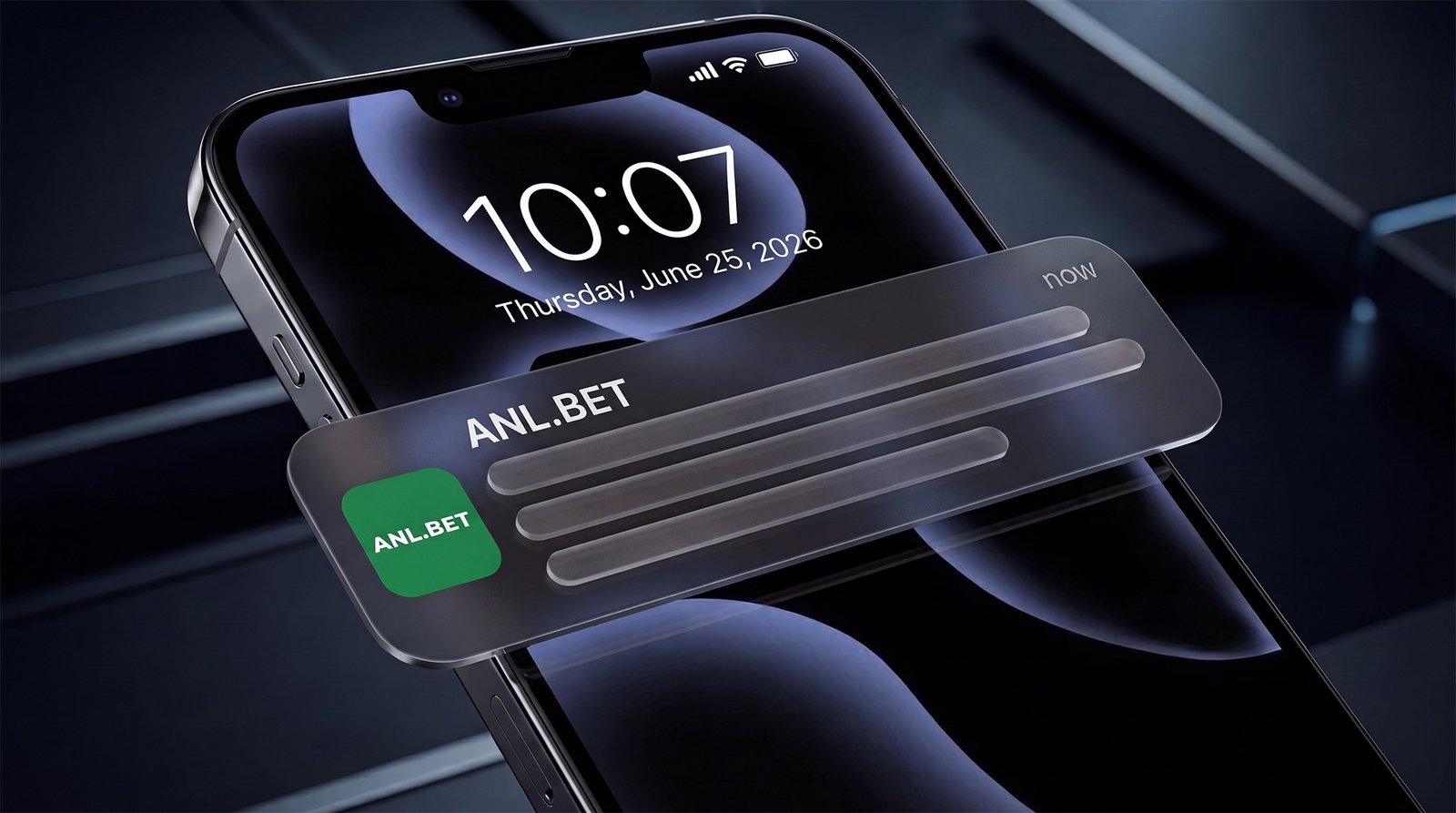
To ensure you receive accurate sports predictions on time, you need to enable notifications from the site on your iPhone. If notifications aren’t enabled, some important matches won’t appear in your feed. Unlock the site’s full potential!
You’ll need to follow a few simple steps – which will take no more than 2 minutes—to enable notifications:
1. Open the website https://anl.bet/blog/ in the Safari browser:
(Only the standard Safari browser – no other browser. If you already have Safari open, simply click the link and it will open in a new window; then go to the new window and follow the instructions below, returning to this guide via your browser tabs. If you’re currently reading these instructions in a different browser, copy the link and paste it into Safari)
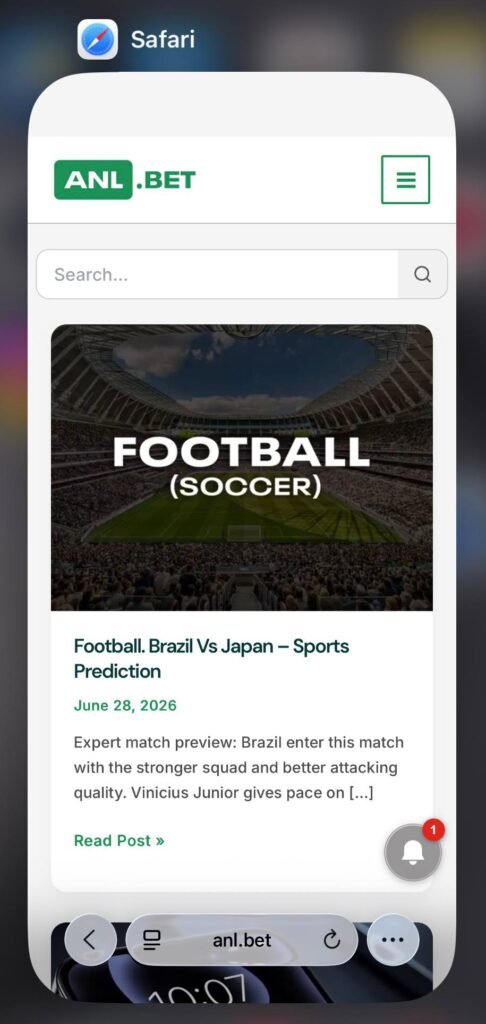
2. Tap the three-dot icon:
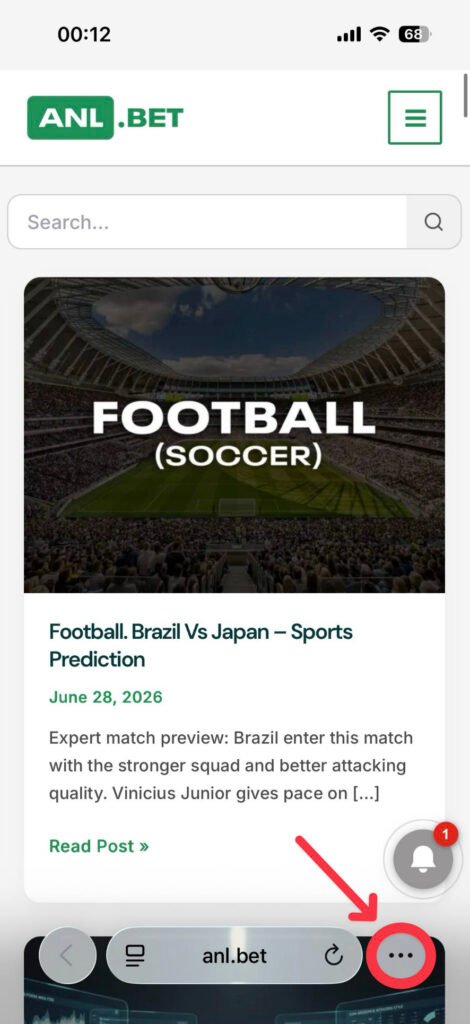
(If you’re using an older version of iOS and don’t see the three-dot menu in Safari when the website is open, tap the Share button (the square with an upward arrow) and skip directly to step 4)
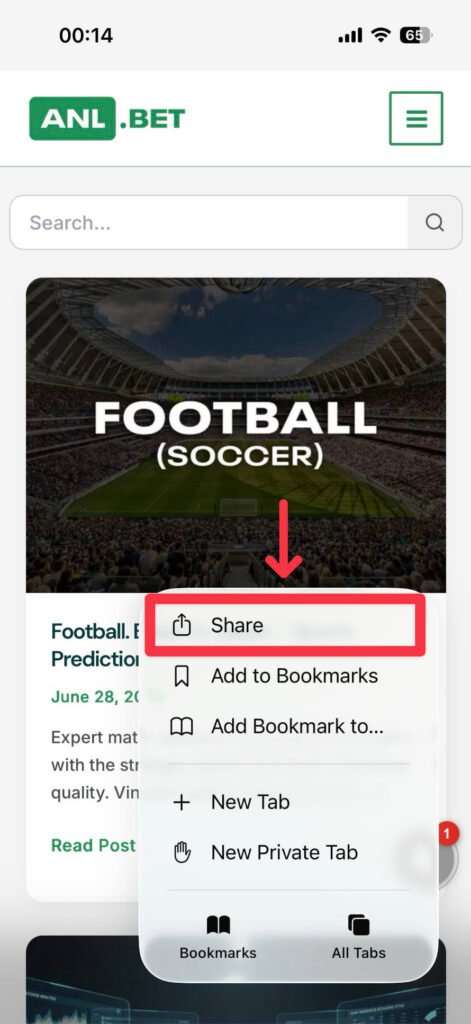
3. Tap the Share button:
(the square with an upward arrow)
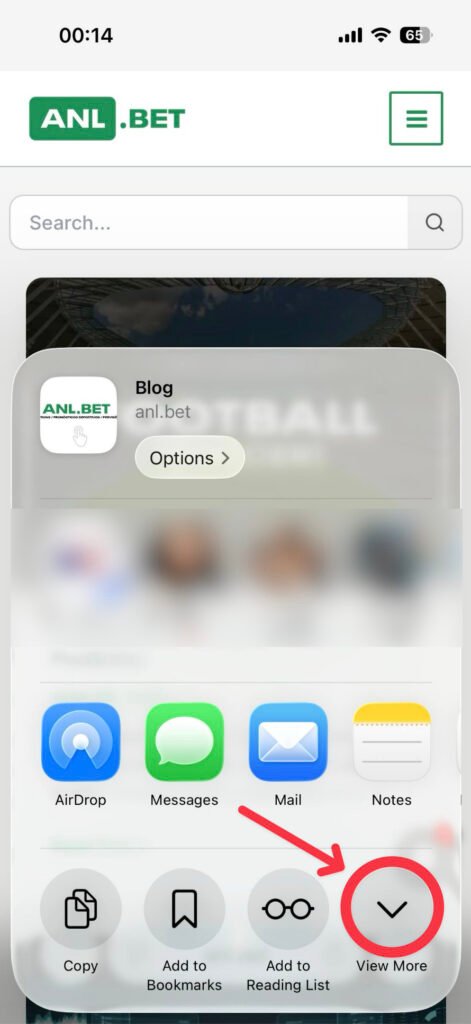
4. Tap the “Show More” button:
(in some versions of iOS, this button is not present and all options are displayed; in that case, scroll down and proceed to step 5)
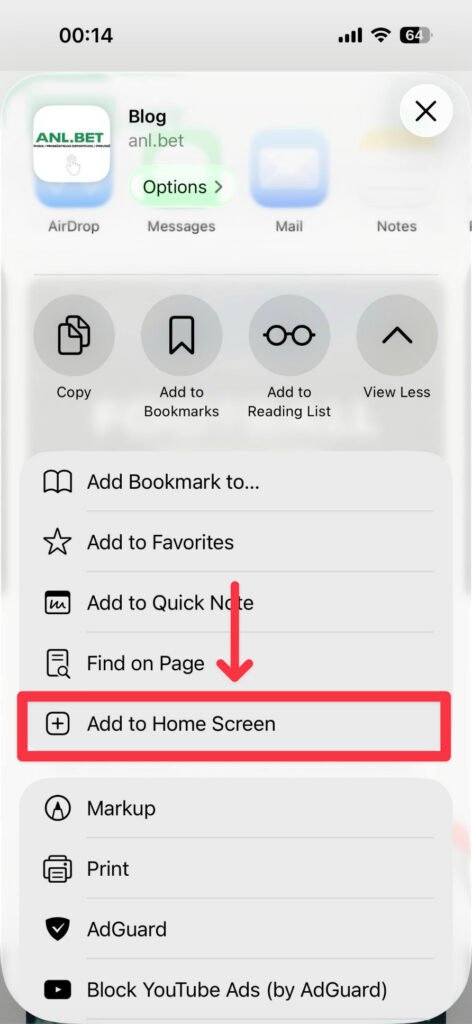
5. Tap the “Add to Home Screen” button:
(the plus sign inside a square)
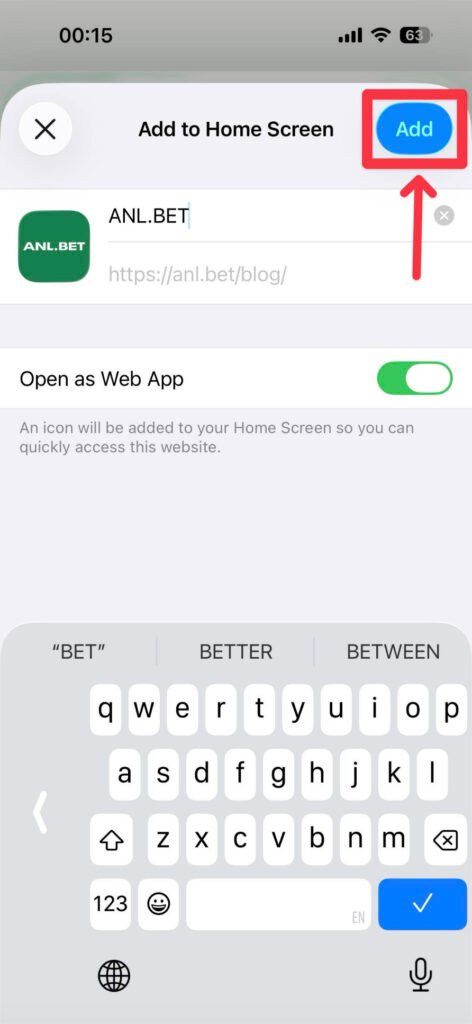
6. Tap the “Add” button:
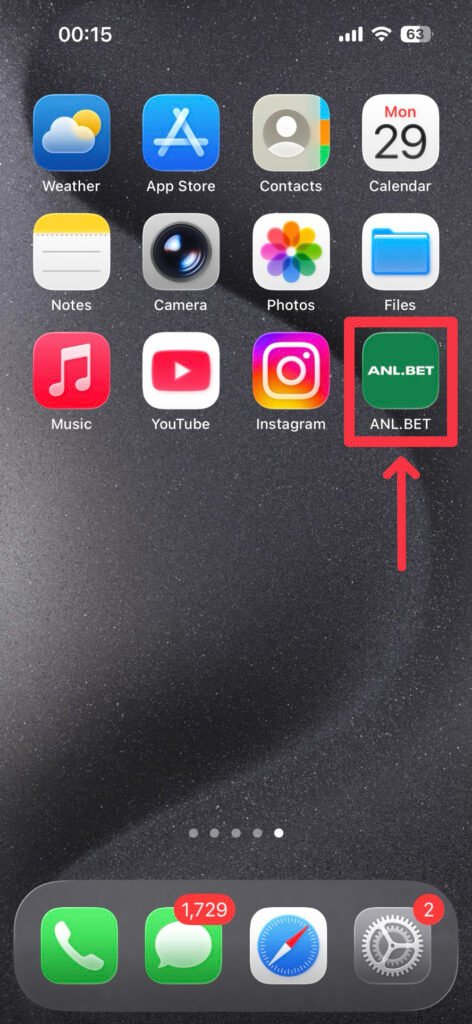
7. On your Home screen, you’ll see the “ANL.BET” app icon; tap it:
(This is now your personal app, where you can view sports predictions for matches)
If you don’t see the icon, swipe through a few screens
8. On the website, you’ll see a flashing green circle with a white bell; tap it:
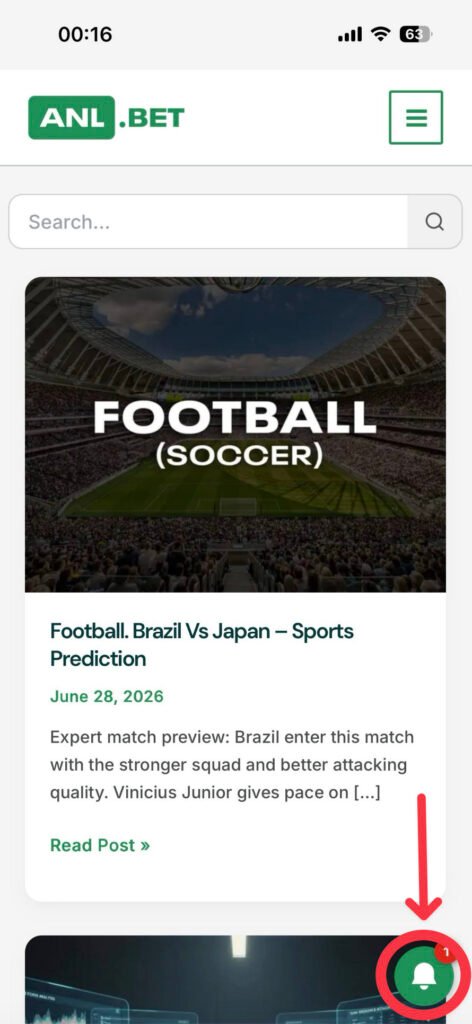
(If you don’t see the icon with a green circle and a white bell, check to make sure you’ve added the page https://anl.bet/blog/ to your home screen. How to check: Clicking the ANL.BET icon on your home screen should open the sports predictions feed. If a different page opens, go back to step 1 and follow the instructions carefully, making sure to add the page https://anl.bet/blog/ to your home screen.)
9. Tap the button and allow notifications:
(Take a look at the first two screenshots before making these settings)
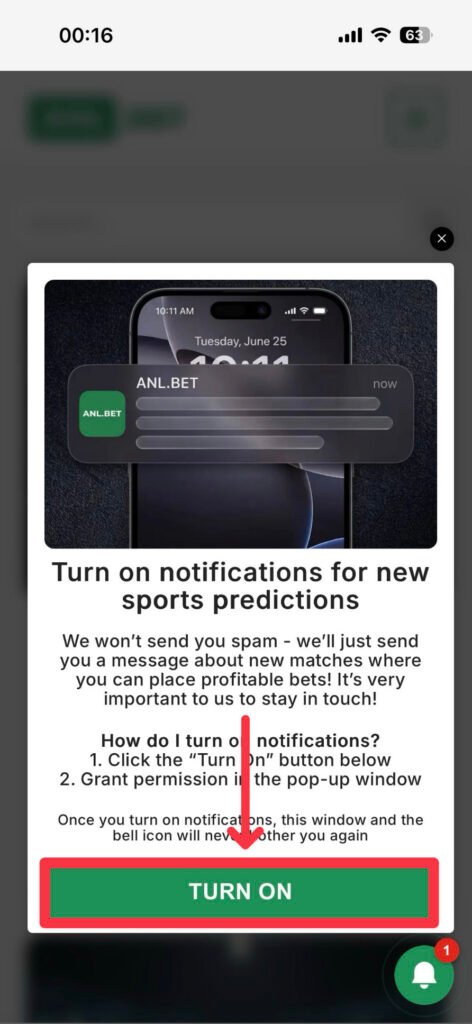
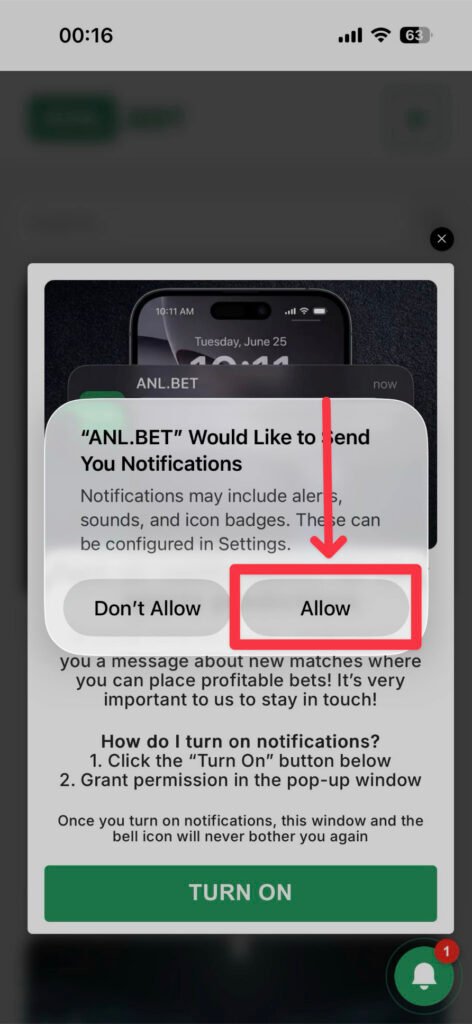
10. After that, the flashing green circle with the white bell should disappear, and you’ll receive your first notification:
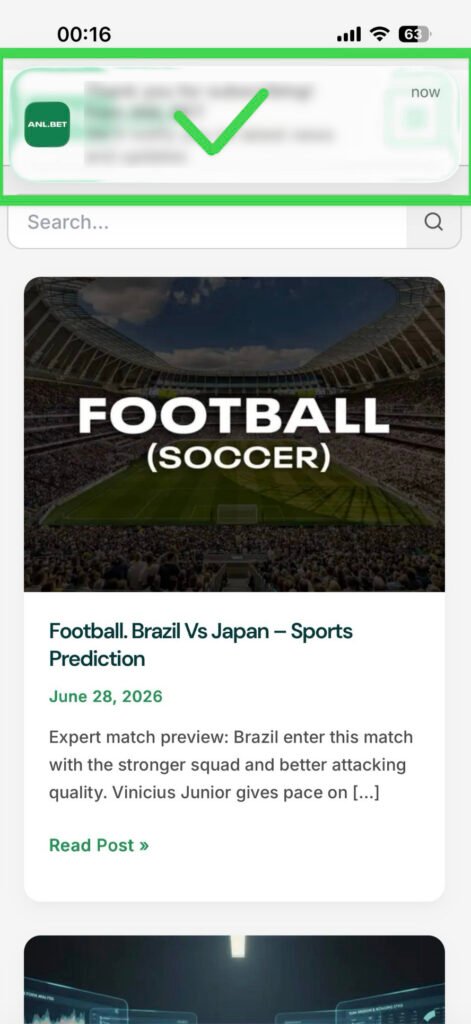
That’s it – you’ve enabled notifications from the website